All about CSS Selectors

Why Selectors Exist?
When you write a CSS rule, you're essentially giving the browser an instruction: "Find these elements and make them look like this." The part that does the finding is the selector. It sits at the top of every CSS rule, before the curly braces, and it tells the browser exactly which elements the styles should apply to.
Without selectors, CSS wouldn't know where to put anything. You'd be forced to write inline styles on every single HTML tag — which breaks down the moment your page grows beyond a handful of elements. Selectors are what allow you to write one rule and have it apply to dozens of elements consistently, without touching your HTML at all.
Think of a selector as the address on an envelope. The style rules are the letter inside — but without a clear address, the letter goes nowhere.
The same idea applies when you're addressing a group of people. If you're running a workshop and you want to hand out materials only to the engineers in the room, you don't call out each name individually — you say "everyone with an engineering badge, come forward." CSS selectors work the same way: you describe who should be targeted, and the browser handles the rest.
NOTE: Selectors are the entry point to all of CSS. You can know every property and value available, but if you can't target the right elements, none of it lands. Get comfortable with selectors first — everything else in CSS builds on top of this.
THE ELEMENT SELECTOR
The element selector is the most straightforward one to understand because it maps directly to HTML tags you already know. You write the tag name — no dots, no hashes, just the name — and the browser applies your styles to every element of that type on the page. Selector Type: Element Syntax: tagname { }
Targets every instance of that element across the entire page. Write "p" and every paragraph gets the style. Write "h1" and every top-level heading does too. No exceptions — it applies globally.
Example:

  p {
    font-size: 16px;
    color: #333;
    line-height: 1.6;
  }

  h1 {
    font-size: 2rem;
    font-weight: bold;
  }

  button {
    background-color: #0070f3;
    color: white;
    padding: 8px 16px;
  }
This is a good fit for styles that should be consistent across your entire project — body font, heading sizes, base link colours. Think of these as your page's default stylesheet: rules that apply unless something more specific overrides them later.
Before CSS: "This is a paragraph. It has no styling applied — just raw browser defaults."
After p { color: #2c5f2e; font-family: sans-serif; }: "This is a paragraph.
The same content, but now it carries a clear visual intention."
THE CLASS SELECTOR
In practice, you rarely want a style to apply to every paragraph or every button on a page. More often, you want to style a specific subset of elements — maybe only the buttons in the navigation, or only the paragraphs inside a sidebar.
That's where class selectors come in, and they'll quickly become the selector you reach for most often.
Selector Type: Class
Syntax: .classname { }
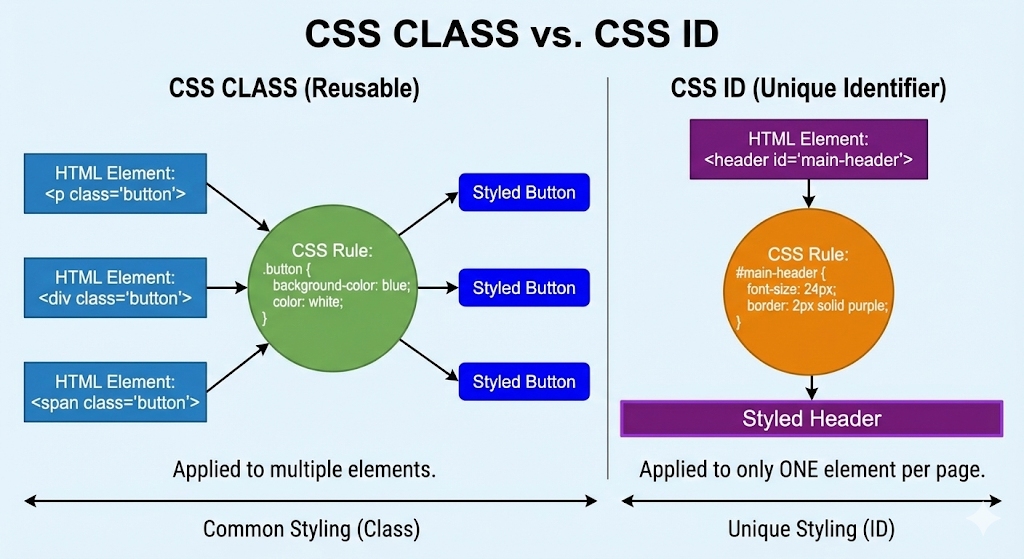
You add a "class" attribute to any HTML element and then target it in CSS with a leading dot. The same class can be applied to as many elements as you need, regardless of what tag type they are. Here's a useful way to think about it: imagine you're organising a team event and you hand out coloured lanyards to different groups. Anyone with a blue lanyard gets access to the technical session. It doesn't matter if they're a junior developer or a senior architect — the lanyard is what grants access. Classes work exactly like that. Any element can wear any class, and it'll receive the associated styles.
Example:

  <!-- HTML -->
  <p class="warning">Your session will expire soon.</p>
  <div class="warning">Please save your work!</div>

  /* CSS */
  .warning {
    background-color: #fff3cd;
    border-left: 4px solid #f0a500;
    padding: 12px 16px;
    color: #7a5000;
  }
Notice that the class is applied to both a <p> and a <div> — two different element types — and both receive the same visual treatment. One rule, defined once, reusable anywhere. This is what makes classes so central to writing maintainable CSS.
A single element can carry multiple classes at once: <p class="card highlighted large">. Each class contributes its own styles independently, which lets you build flexible, composable design patterns rather than writing a new class for every possible combination.
THE ID SELECTOR
Some elements on a page are truly one of a kind — the main navigation bar, the primary call-to-action button, the site header. These elements don't repeat, and they often need styling that's specific to them alone.
For those situations, you'd use an ID selector.
Selector Type: ID
Syntax: #id-name { }
Add an "id" attribute to a single HTML element, then target it in CSS with a leading hash (#). An ID is meant to be unique within a page — assign each one to only one element. If a class is like a job title — many people can share the same title — then an ID is like an employee ID number. It's issued to one person, it's never duplicated, and it identifies that individual specifically. In HTML terms, it means: this is the one element on this page that has this name.
If a class is like a job title — many people can share the same title — then an ID is like an employee ID number. It's issued to one person, it's never duplicated, and it identifies that individual specifically. In HTML terms, it means: this is the one element on this page that has this name.
Example:

  <!-- HTML -->
  <button id="submit-btn">Submit</button>

  /* CSS */
  #submit-btn {
    background-color: #0070f3;
    color: white;
    font-size: 16px;
    padding: 12px 28px;
    border: none;
    border-radius: 6px;
    cursor: pointer;
  }
Each "id" value should appear exactly once per page. Using the same ID on multiple elements is invalid HTML and can lead to unpredictable behaviour in both CSS and JavaScript. If you find yourself wanting to reuse an ID, that's a clear sign you should be using a class instead.
GROUP SELECTORS
As your stylesheets grow, you'll often find yourself writing the same declaration block for multiple selectors. Maybe all your heading levels should share the same font family, or your input, textarea, and select elements should all have consistent border styling. Group selectors let you handle that without repeating yourself.
Selector Type: Group
Syntax: a, b, c { }
Separate multiple selectors with commas, and the styles inside the block will apply to all of them. You can mix element selectors, class selectors, and ID selectors freely in the same group.
/* Repetitive — avoid this */
  h1 { font-family: 'Georgia', serif; }
  h2 { font-family: 'Georgia', serif; }
  h3 { font-family: 'Georgia', serif; }

  /* Clean and maintainable — use this instead */
  h1, h2, h3 {
    font-family: 'Georgia', serif;
    color: #1a1612;
    line-height: 1.25;
  }

  /* You can mix selector types in the same group */
  .error, #login-warning, p {
    font-size: 14px;
  }
Grouping also makes updates easier to manage. If you decide all your headings should use a different font, you change it in one place rather than three. That's a small win now, and a significant one when you're working on a project with hundreds of rules.
DESCENDANT SELECTORS
So far, every selector we've looked at targets elements based on what they are. Descendant selectors let you target elements based on where they are — specifically, whether they're nested inside another element.
This gives you a much finer level of control. Selector Type: Descendant Syntax: ancestor descendant { }
Write two selectors separated by a space. The styles apply only to the second element when it appears somewhere inside the first — at any level of nesting.
<!-- HTML -->
  <div class="card">
    <p>This paragraph IS inside .card</p>
  </div>

  <p>This paragraph is NOT inside .card</p>

  /* CSS */
  .card p {
    font-style: italic;
    color: #4a4540;
    font-size: 0.95rem;
  }
The rule ".card p" is read from left to right: "find any p that lives inside a .card." The standalone <p> outside the card is ignored entirely — it doesn't meet the condition.
Before: Both paragraphs look identical — no difference in appearance.
After: The paragraph inside .card receives the italic, muted styling. The paragraph outside .card is completely unaffected.
Descendant selectors are especially valuable for scoping styles to specific regions of a layout. For example, you might style all links globally with "a { color: blue; }" and then override that just for your footer with ".footer a { color: white; }" — no extra classes needed.
SELECTOR PRIORITY — THE BASICS
Once you start combining selectors, you'll eventually run into a situation where two different rules are both targeting the same element and telling it to look different.
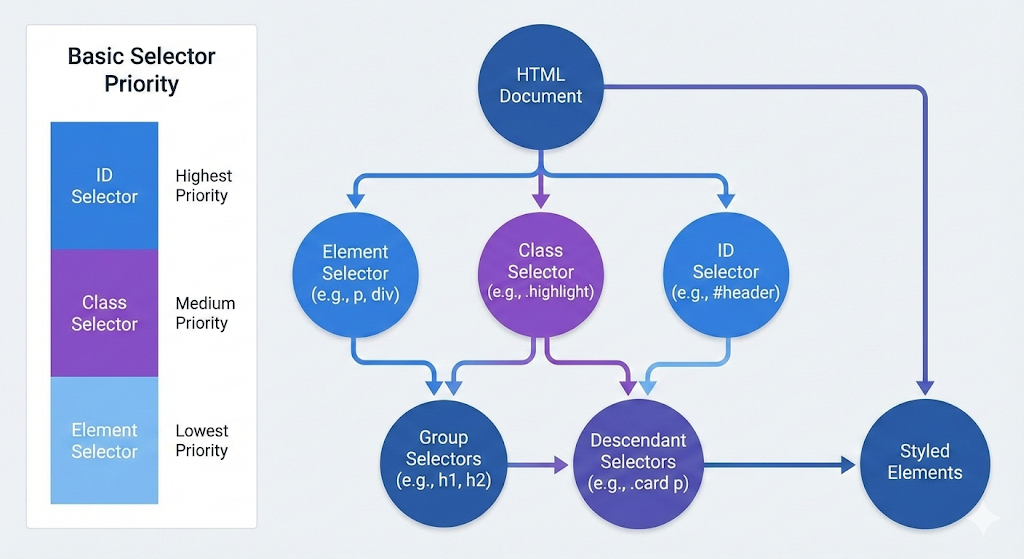
The browser has to make a decision — and it does so using a concept called specificity. At a foundational level, the three selector types we've covered have a clear hierarchy. ID selectors carry the most weight, class selectors sit in the middle, and element selectors have the lowest priority. When rules conflict, the one with higher specificity wins.
Example:

  /* Lowest specificity — applies broadly */
  p {
    color: gray;
  }

  /* Medium — overrides the element selector */
  .highlight {
    color: orange;
  }

  /* Highest — overrides both */
  #special {
    color: crimson;
  }

  /* A <p class="highlight" id="special"> will render as crimson */
Quick reference:
- ID overrides everything
- Class beats element
- Element is the lowest fallback
- Equal specificity → the last rule in the file wins
Specificity does get more nuanced once you start combining selectors or using !important. But for where you are right now, the mental model of element → class → ID from low to high priority will serve you well and help you reason through most conflicts you'll encounter
Conclusion